How it works
MyCompanyPortal is one workspace in front of the software your company already uses. It does not replace any of it. This page goes through what it does, from the simplest part to the most involved.
The pictures on this page are taken from the interactive demo. They show Northstar Creative, a fictional company, and everything in them is sample data.
On this page
Centralized application access
One launcher for every application your company uses: searchable, grouped by category, with each person’s favorites first.

Each application is added as a link. A link opens the application in a new browser tab and exchanges no data with it. People sign in to the application as they do today, and there is nothing to connect and no access to grant. Links are included in every plan.
- Who sets it up
- We add your applications with you when the workspace is set up. After that, an administrator can add, edit or remove an application and choose which departments see it.
- What employees see
- The applications shared with their department. They can search them, mark favorites and add personal links that only they see.
- What we need from you
- The applications and internal pages your team uses, the web address of each, and which departments use it.
- Which plans include it
- Every plan.
Open the Applications page in the interactive demo
It opens on the Basic plan, viewed as an employee.
Personalized employee workspaces
Every employee opens the portal to a home page of their own.
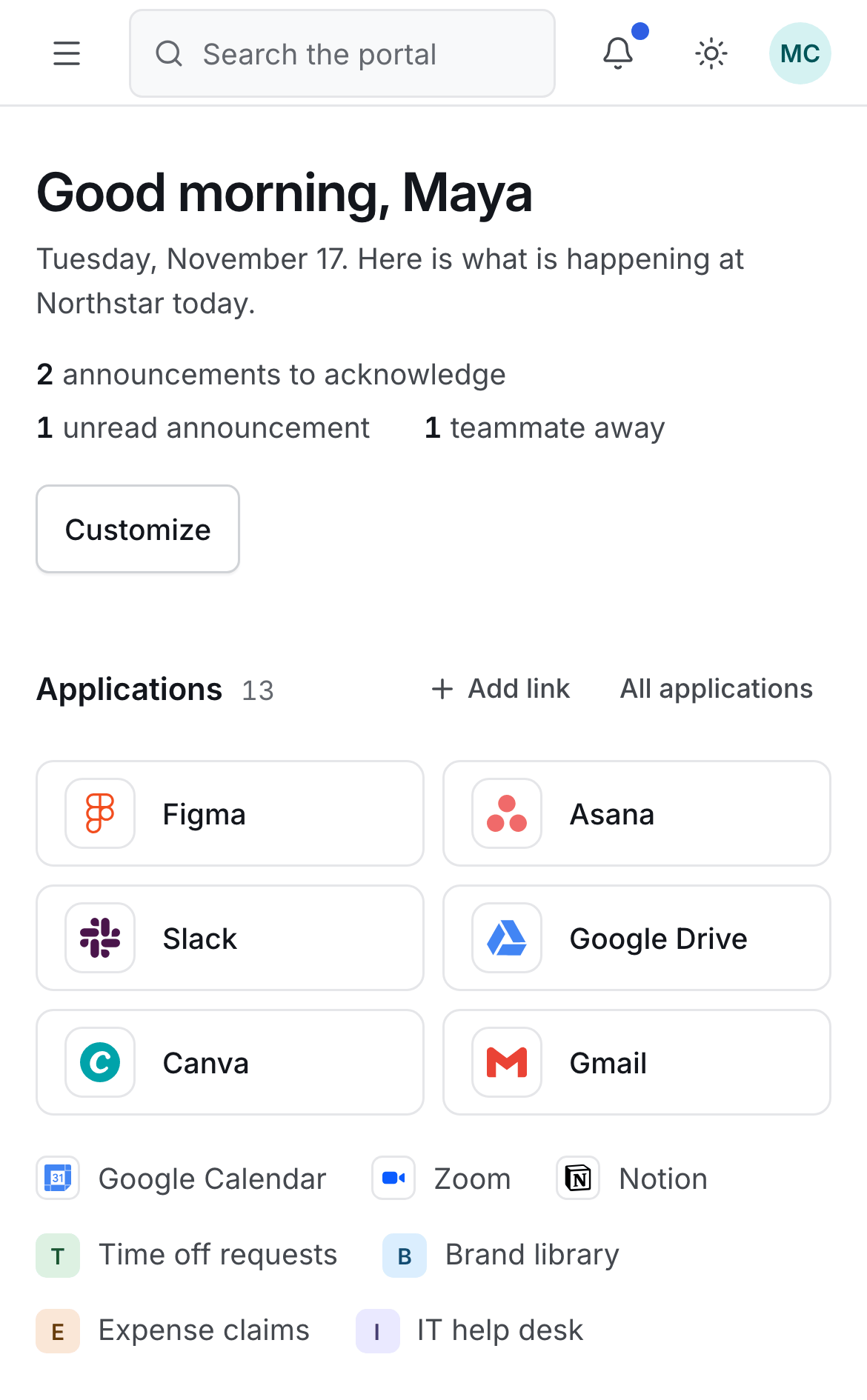
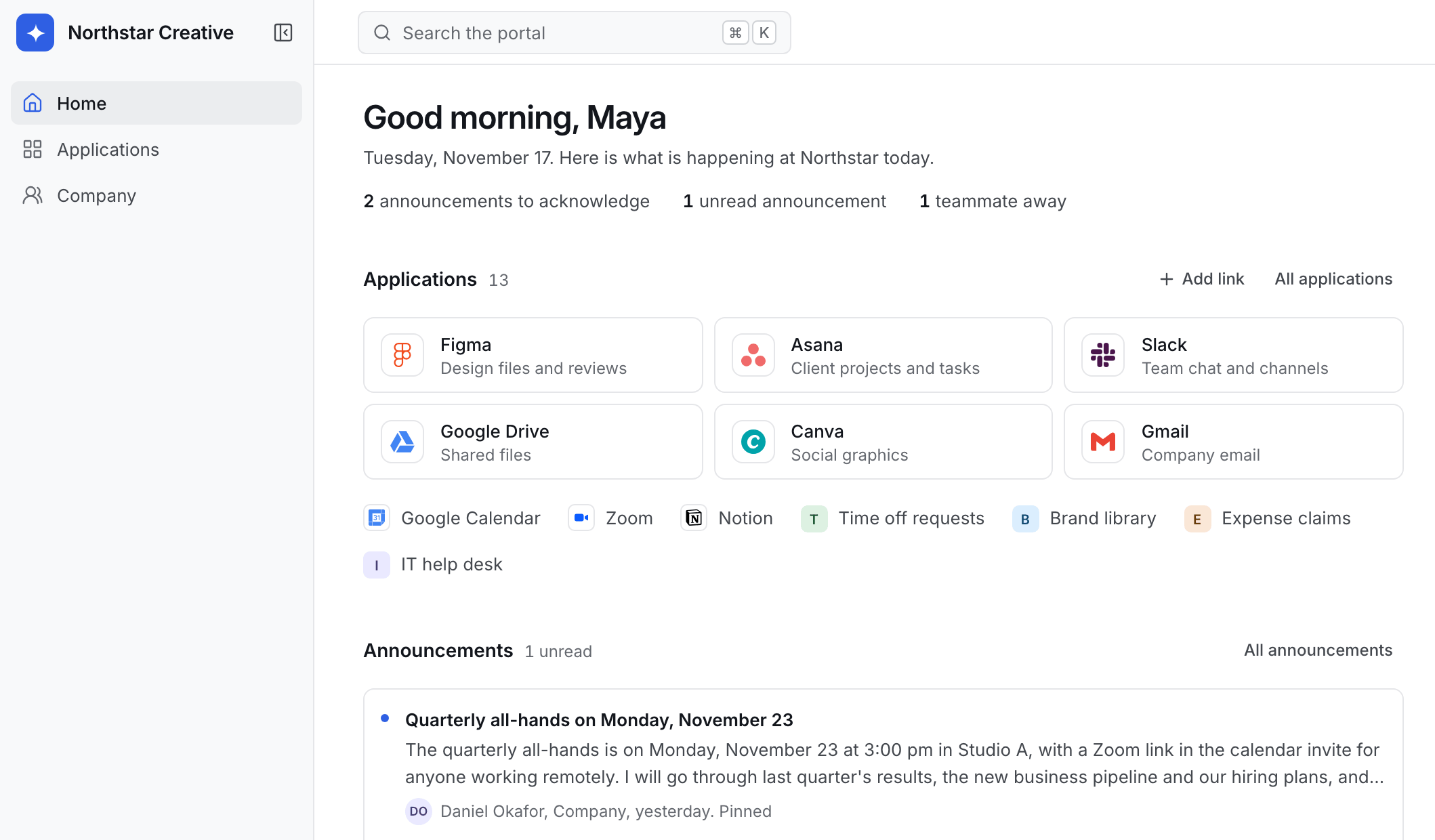
On every plan it brings together their applications, the company’s announcements, their team and the dates coming up. An administrator arranges a starting dashboard for each department, and each person can then reorder or hide sections for themselves. Managers and administrators can also switch to a view of the whole company.
As applications are connected, the same page fills in: a person’s tasks, meetings and messages appear in sections of their own. Those come from integrations, the third part of this page.
- Who sets it up
- We arrange each department’s dashboard with you. An administrator can change it at any time, and each person can adjust their own page.
- What employees see
- A greeting, what needs their attention, their applications, announcements, their team and key dates. The page is laid out for a phone as well as a computer.
- What we need from you
- Your departments, and what each one should see first.
- Which plans include it
- Every plan. Sections that show information from another application need an integration.
Open an employee’s home page in the interactive demo
It opens on the Basic plan, viewed as an employee.
Standard integrations
An integration shows an application’s live information inside the portal, so people see it without opening the application.
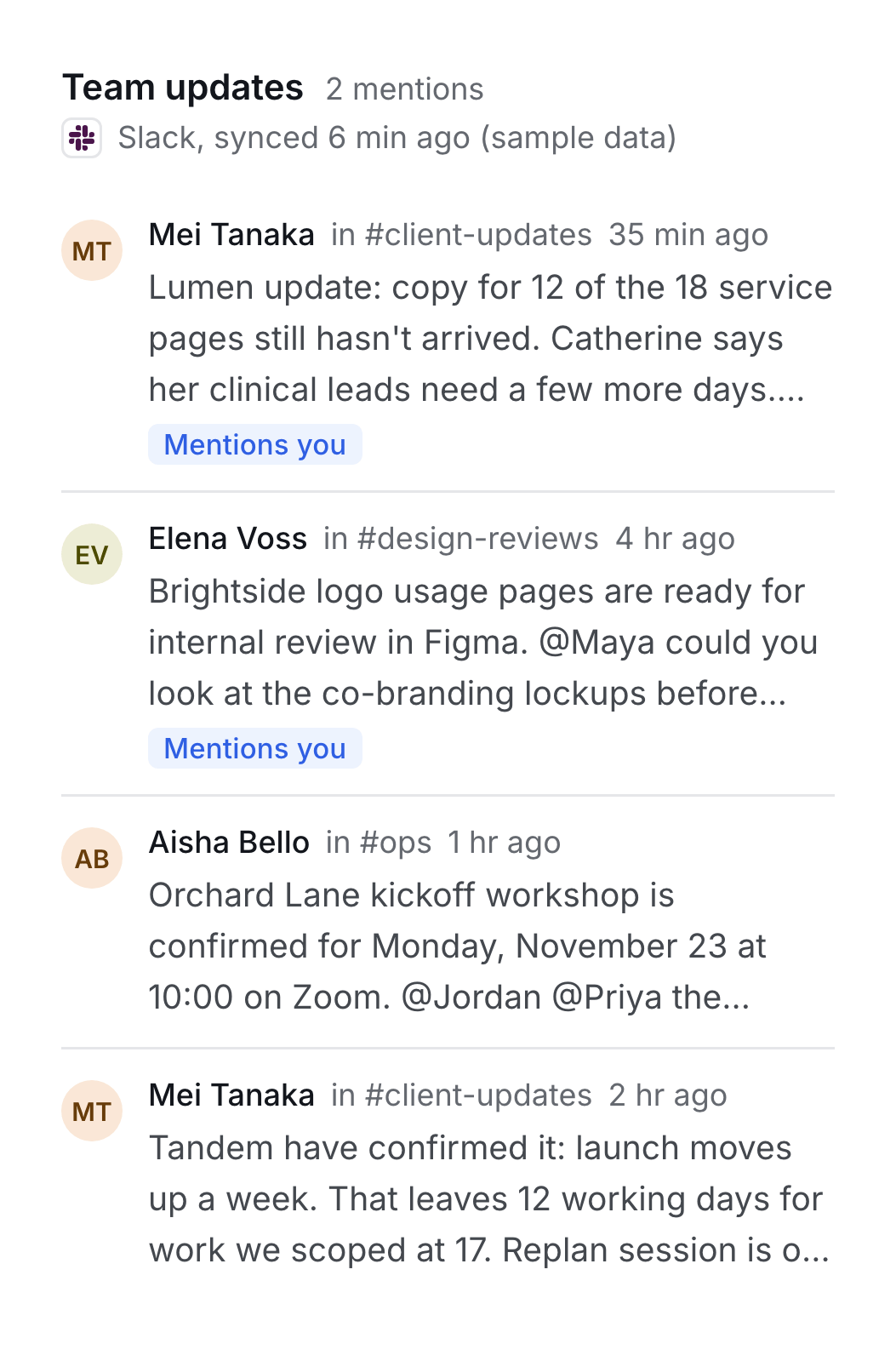
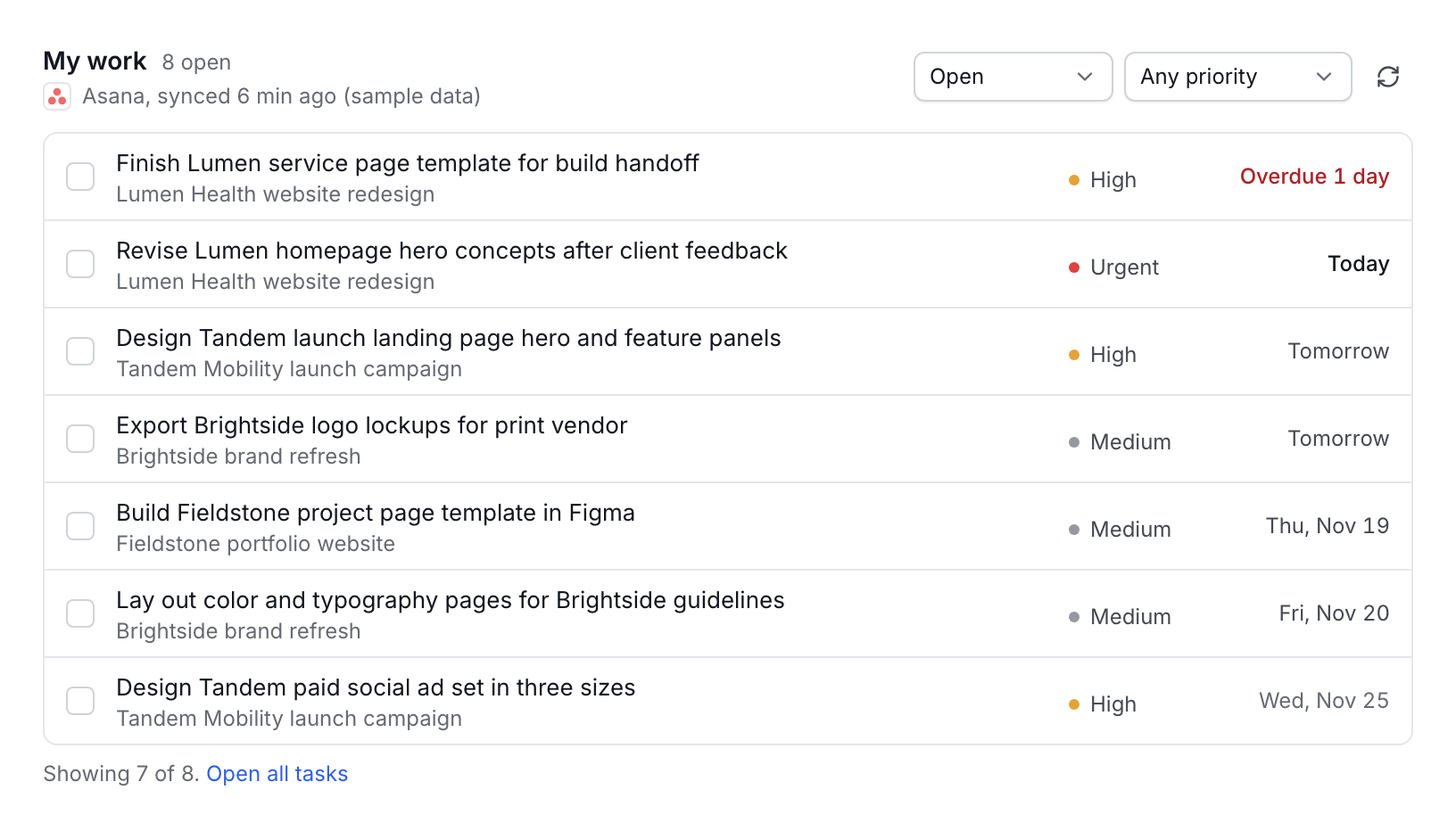
A link only opens an application. An integration also reads information from it, such as a person’s open tasks, the day’s meetings or the messages that mention them. Through workflows it can also create things there, such as a task or a meeting. What it reads appears in a section of the home page, marked with the application it came from and when it was last synced.
- Who sets it up
- It is connected to your company’s own account in that application during setup. An administrator signs in there, approves what the portal may read and what workflows may create there, and chooses which kinds of information to bring in.
- What employees see
- Sections on their home page that fill from the connected application, such as their own tasks or the messages that mention them.
- What we need from you
- Someone who can sign in to the application for your company and approve the connection.
- Which plans include it
- One on Plus, three on Pro and up to eight on Ultra. Basic has none.
The ten standard integrations in the interactive demo
In the interactive demo, these connections are simulated with sample data. No third-party account is connected.
In a customer’s workspace, a standard integration is connected to that company’s own account in the application during setup. Before you subscribe, we confirm with you which of these integrations are available for the applications you use.
| Application | Category | What it brings into the portal |
|---|---|---|
| Asana | Projects | Assigned tasks and project progress. Workflows can create tasks. |
| HubSpot | Sales and CRM | New leads, open deals by stage and client contacts. Workflows can assign a lead to its owner. |
| Slack | Communication | Flagged messages from chosen channels and the messages that mention each person. Workflows can post notifications. |
| Google Calendar | Email and calendar | Each person’s meetings for the day. Workflows can schedule meetings. |
| Google Drive | Files and documents | Recently changed project files and shared department folders. Workflows can create client folders. |
| QuickBooks | Finance | Invoices by status and overdue balances by client, for managers. |
| Gmail | Email and calendar | Client emails that are waiting on a reply, with the sender, the subject and a short preview. |
| Notion | Knowledge | Recently updated handbook pages and process documents. |
| Figma | Design | Design files that are in review, with their open comments. |
| Zoom | Meetings | Join links on the day’s scheduled calls. |
Any application can be added as a link, whether or not it is in this list. Bringing in information from an application that has no standard integration is custom development.
Open the Integrations page in the interactive demo
It opens on the Pro plan, viewed as an administrator.
Configurable workflow automation
A workflow carries out routine steps across your applications, then reports what it did.
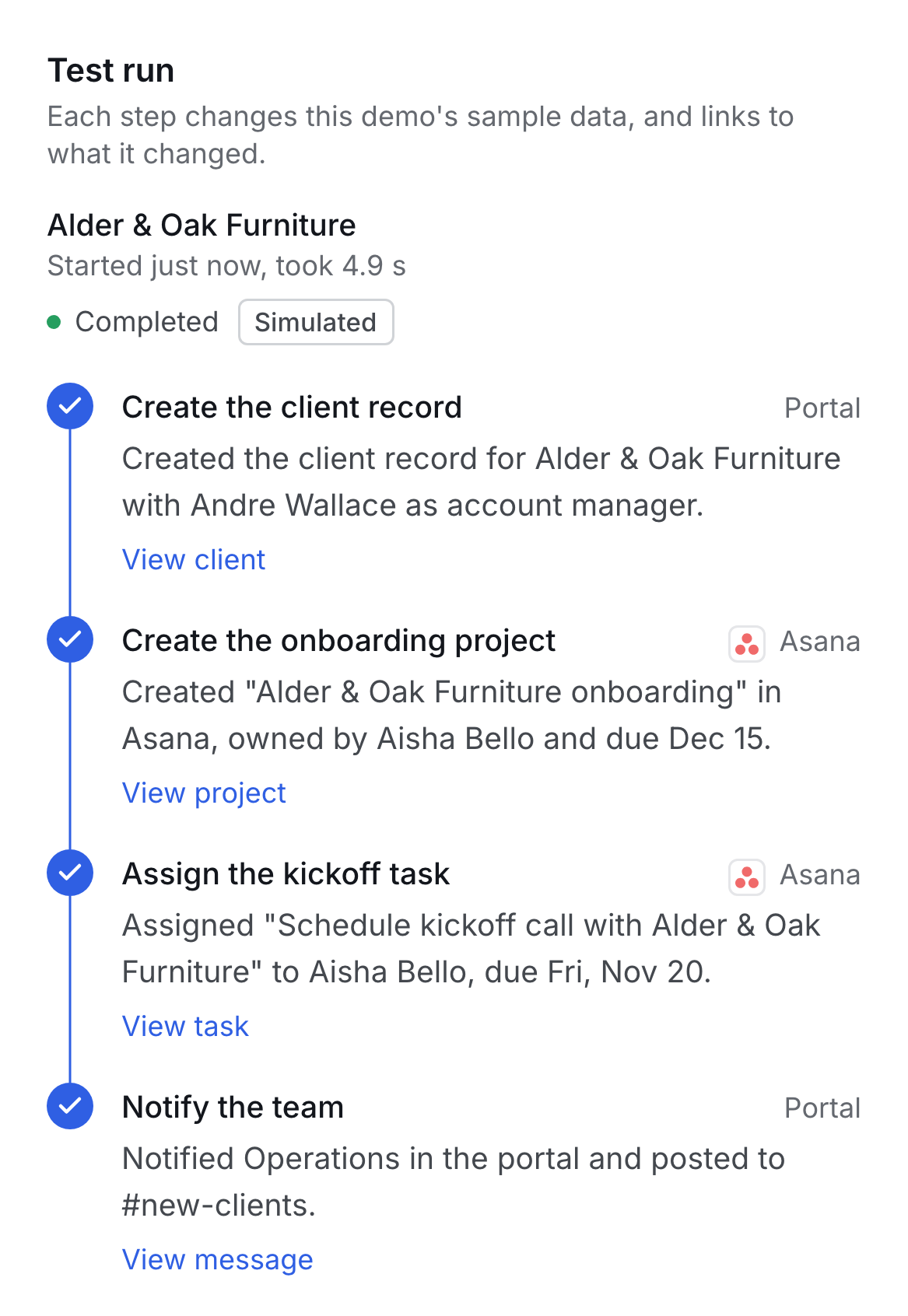
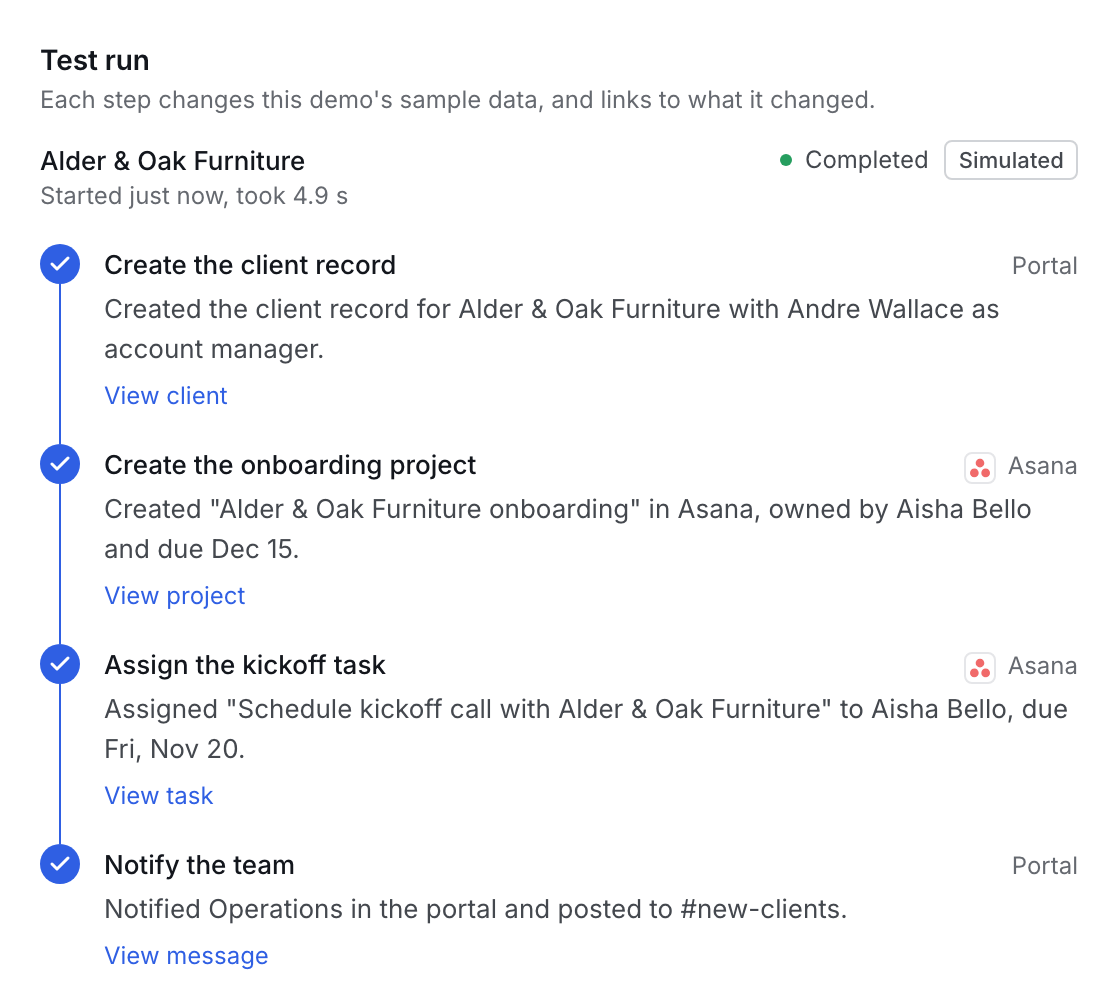
Workflows come as templates. A template is a pre-built sequence of steps across applications that an administrator switches on and configures: who a task is assigned to, how many days before a deadline a reminder goes out, which channel is told.
Once a template is on, it starts by itself: when a form is submitted in the portal, when something happens in a connected application, or on a schedule. Every run is recorded step by step, with what each step created.
- Who sets it up
- An administrator or a manager switches a template on and sets its options. They can try it with a test run first.
- What employees see
- What the workflows did for them, on their home page: a reminder that was sent, a task that was assigned to them, a review that was requested.
- What we need from you
- The applications a template acts on, connected as integrations, and your decisions on its settings.
- Which plans include it
- Two on Plus and six on Pro. Ultra has expanded access to the template library. Basic has none.
The twelve workflow templates in the interactive demo
In the interactive demo, workflow runs are simulated.
Each step changes the demo’s sample data, and nothing is sent to another application. Before you subscribe, we confirm with you which of these templates are available for the applications you use.
| Template | What it does | Starts on |
|---|---|---|
| New client onboarding | Creates the client record, an onboarding project and a kickoff task when a client onboarding form is submitted, then tells the team. | From Plus |
| Task deadline reminder | Reminds the owner of an assigned task when it is close to its due date, and records the reminder in the activity log. | From Plus |
| New lead follow-up | Creates a follow‑up task in Asana when a lead arrives in HubSpot, assigns a sales owner and tells the team in Slack. | From Pro |
| Client project wrap-up | Updates a project’s status when it is marked complete, tells the account manager and creates a client follow‑up task. | From Pro |
| Approval reminder | Each weekday morning, finds the approvals that have waited too long, reminds the approvers and posts a summary. | From Pro |
| Weekly pipeline digest | Totals the open HubSpot deals by stage every Monday and posts the digest for the sales team. | From Pro |
| Overdue invoice follow-up | Creates a follow‑up task for the account manager when a QuickBooks invoice becomes overdue, and tells operations. | From Ultra |
| New hire setup | Creates a new hire’s onboarding checklist, schedules an introduction with their manager and posts a welcome. | From Ultra |
| Client meeting follow-up | Creates a notes document in Drive and a follow‑up task for the organizer after a client meeting. | From Ultra |
| Design review handoff | Raises an approval for the Creative Director when a Figma file moves to review, and posts it for the design team. | From Ultra |
| Won deal to client workspace | Creates the client, a Drive folder, a kickoff project and a kickoff meeting when a HubSpot deal is won, then announces it. | From Ultra |
| Project hours alert | Warns the project owner and creates a scope review task when the hours logged pass a share of the budget. | From Ultra |
A workflow that is not in the library is custom development: we design it with you and quote it separately.
Open the workflow library in the interactive demo
It opens on the Plus plan, viewed as a manager.
AI-assisted functionality, where supported
AI assistance is optional. Whether it is available depends on your plan and on the applications you connect.
It is not shown in the interactive demo. Before you subscribe, we confirm what is available for the tools your company uses.
- Which plans include it
- Limited on Plus, broader on Pro and Ultra, where supported. Basic has none.
Company and department customization
The portal carries your company’s name, logo and colors, and each department opens to a dashboard arranged for its work.
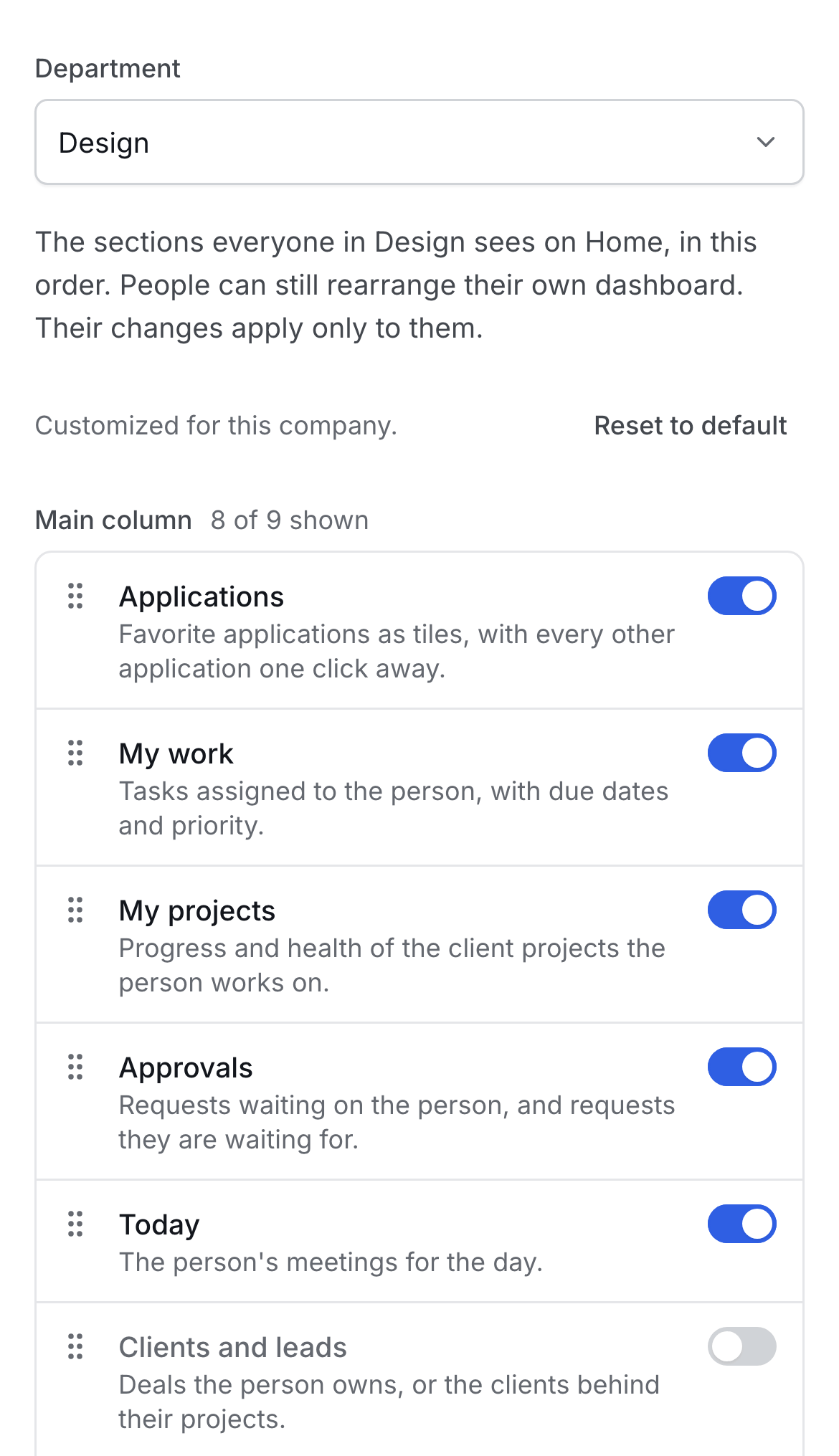
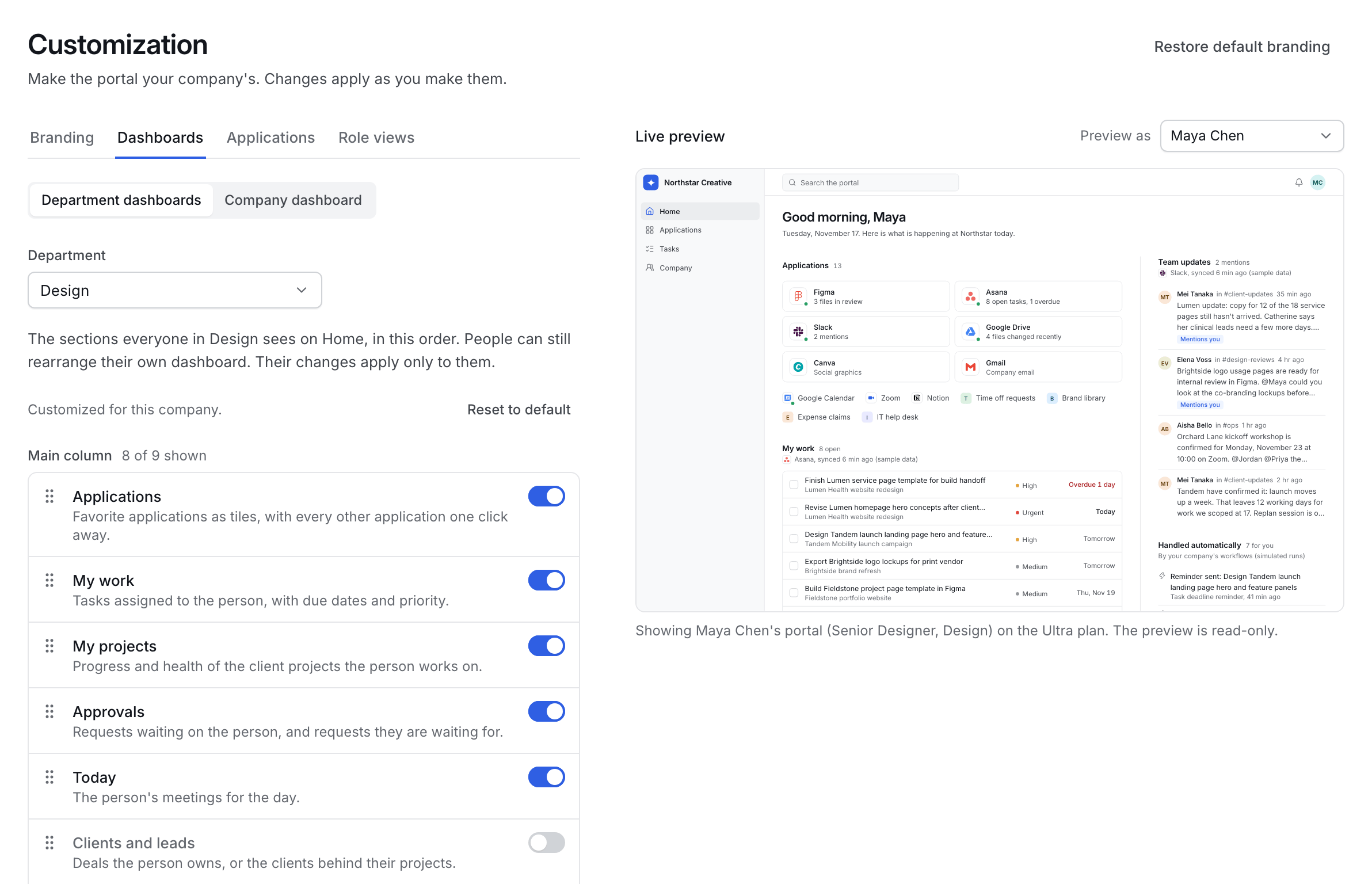
All of it is configuration, changed on one page with a live preview. An administrator sets the company name, logo, primary color and sidebar style, arranges the sections each department sees and their order, and decides which pages employees and managers see.
- Who sets it up
- We configure it with you when the workspace is set up. An administrator can change any of it afterward, and changes apply as they are made.
- What employees see
- Your company’s branding throughout, and their department’s dashboard as the starting point for their own.
- What we need from you
- Your logo and brand color, your departments, and what each department should see first.
- Which plans include it
- Branding and department layouts are in every plan. Ultra adds dedicated customization planning.
Open the Customization page in the interactive demo
It opens on the Ultra plan, viewed as an administrator.
Custom development and implementation
MyCompanyPortal is a small, hands-on company. We work directly with your team to design and implement additional integrations, workflows, and features.
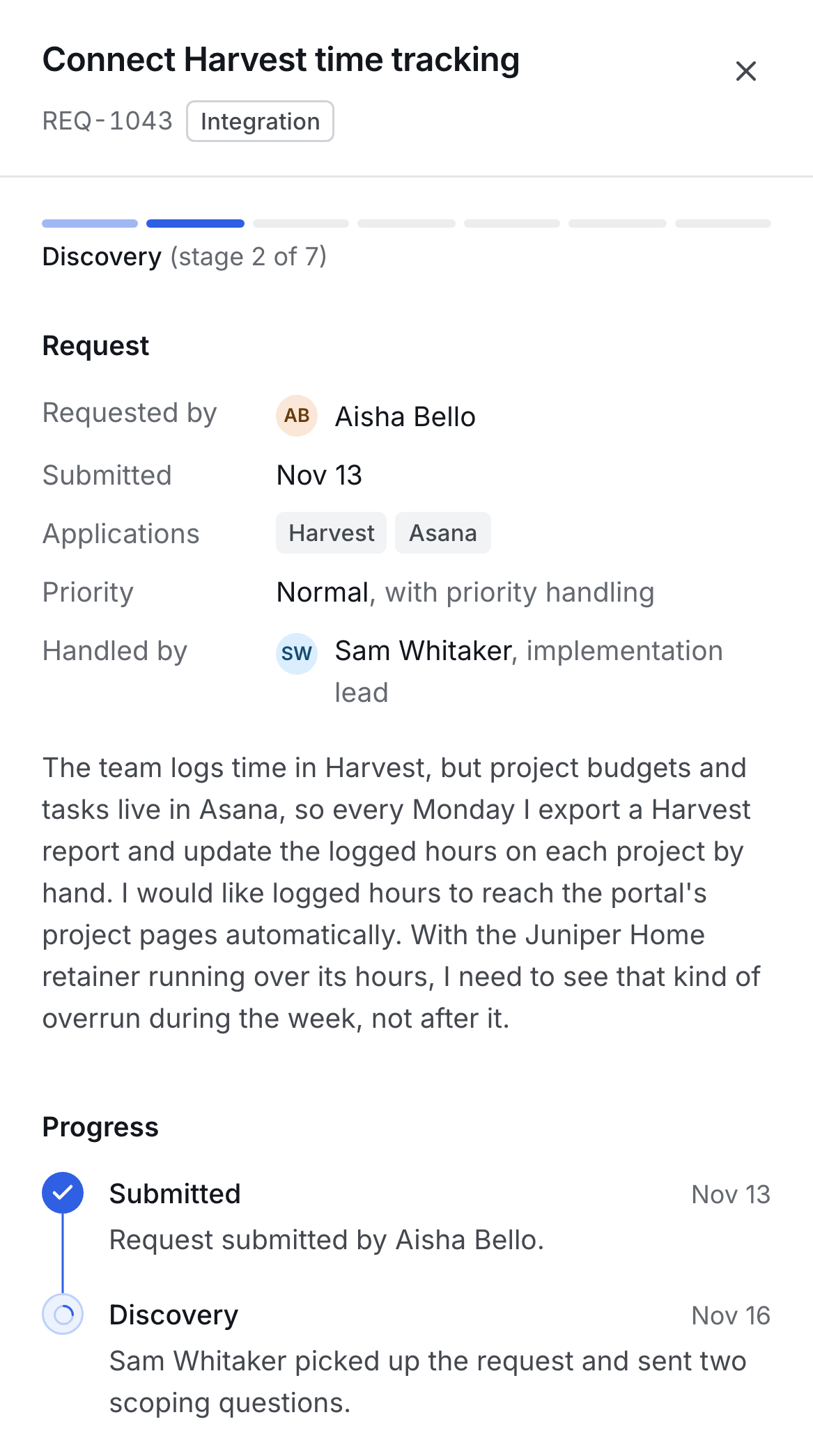
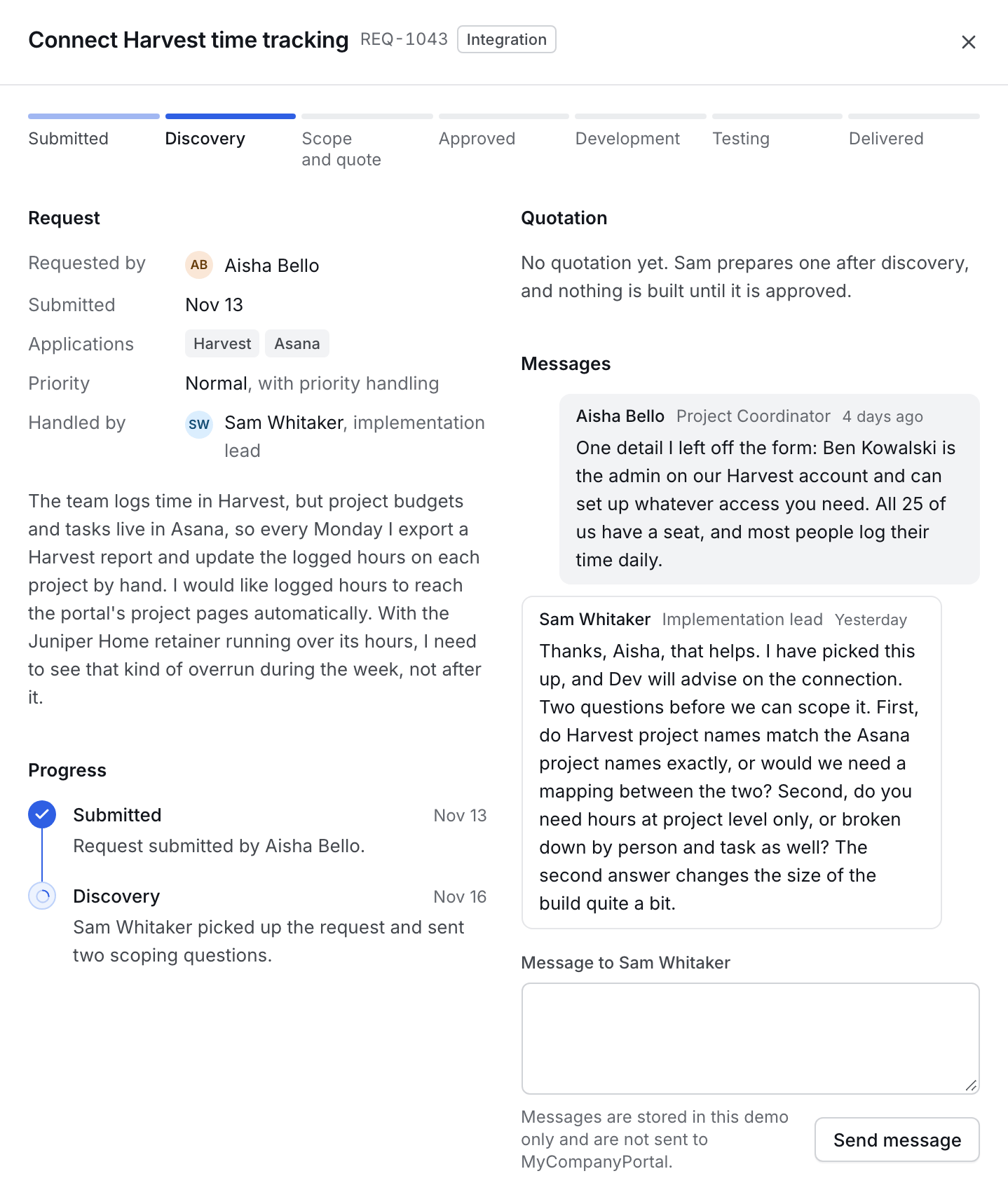
Implementation is the work of setting up your workspace with you, as the parts above describe. Custom development is for what configuration cannot do: an integration that is not on the standard list, a workflow that is not in the library, a dashboard for one team. It is quoted separately based on project complexity and is never part of a subscription, on any plan.
- Who does the work
- The MyCompanyPortal team, working directly with yours.
- What it costs
- Each project is quoted separately, based on its complexity. You receive the quotation in writing, and nothing is built until you approve it.
- Which plans include it
- No plan includes it. It can be requested on any plan and is quoted separately each time. Ultra adds priority support and dedicated customization planning.
The seven stages of a request
Every request goes through the same stages, in the same order, and the portal shows which one it has reached.
Submitted
We have your request and assign someone to it.
Discovery
A short call or thread to understand how you work today.
Scope and quote
We write down what we will build and what it will cost.
Approved
You approve the quotation and we schedule the work.
Development
We build it against a copy of your portal.
Testing
You try it with your own team before it goes live.
Delivered
Live in your portal, with a handover note.
Follow a request in the interactive demo
It opens on the Ultra plan, viewed as an administrator. The quotations and prices shown there are illustrative. They are not our price list.
Common questions
What is the difference between a link, an integration, a workflow and custom development?
Each does more than the one before it, and the plans are built on the difference.
- Link
- A shortcut. It opens the application in a new browser tab, and nothing passes between the application and the portal. Every plan includes links.
- Integration
- Shows that application’s live information inside the portal, such as your tasks, today’s meetings or new messages, so you see it without opening the application. One standard integration on Plus, three on Pro and up to eight on Ultra. Basic has none.
- Workflow
- Carries out routine steps across your applications and tells you what it did. Workflows come as templates that an administrator switches on and configures. Two templates on Plus and six on Pro. Ultra has expanded access to the template library. Basic has none.
- Custom development
- Anything built for your company alone: an integration that is not on the standard list, a workflow that is not in the library, a feature of your own. It is quoted separately, based on the complexity of the project, and is not part of a subscription on any plan.
Take a project management tool. A link opens it. An integration shows each person’s tasks from it on their home page. A workflow creates a task in it when a new client is signed. Custom development is for when you need something that the standard integration and the workflows in the library do not cover.
Does MyCompanyPortal replace the software we use?
No. Your team keeps every application it uses today. MyCompanyPortal is one workspace in front of them: the place people open them from, see what needs their attention and read what the company has to tell them.
Who sets it up?
We do, with you. MyCompanyPortal is a small company, and we work directly with your team to set up the workspace: your branding, your applications, and what each department sees. After that, an administrator at your company can change any of it.
What does the interactive demo show, and what in it is simulated?
It is the portal of Northstar Creative, a fictional 25-person agency, filled with sample data. It opens in your browser with no sign-up, and you can switch between the four plans and view it as an employee, a manager or an administrator.
Its integrations and workflow runs are simulated: no third-party account is connected, and nothing is sent to another application. AI assistance is not part of the demo, and the quotations on its Custom development page are illustrative.
What if there is no standard integration for an application we use?
It can still be added as a link, which every plan includes, as long as it opens at a web address. To bring its information into the portal or use it in a workflow, it needs an integration of its own, which we would design and build with you as custom development, quoted separately. Tell us which applications you rely on when we talk, and we will tell you what is supported.
Let’s build a workspace that works for your company.
Tell us how your team works, and we’ll explore how MyCompanyPortal can bring your tools and workflows together.
A product demo takes 30 minutes, an introductory call 15. Or write to yim@mycompanyportal.app.